LEGO order file
Upload to LEGO.
Watch the download and LEGO Pick a Brick upload process before you place your order.
Turn your favorite image into LEGO® wall art!
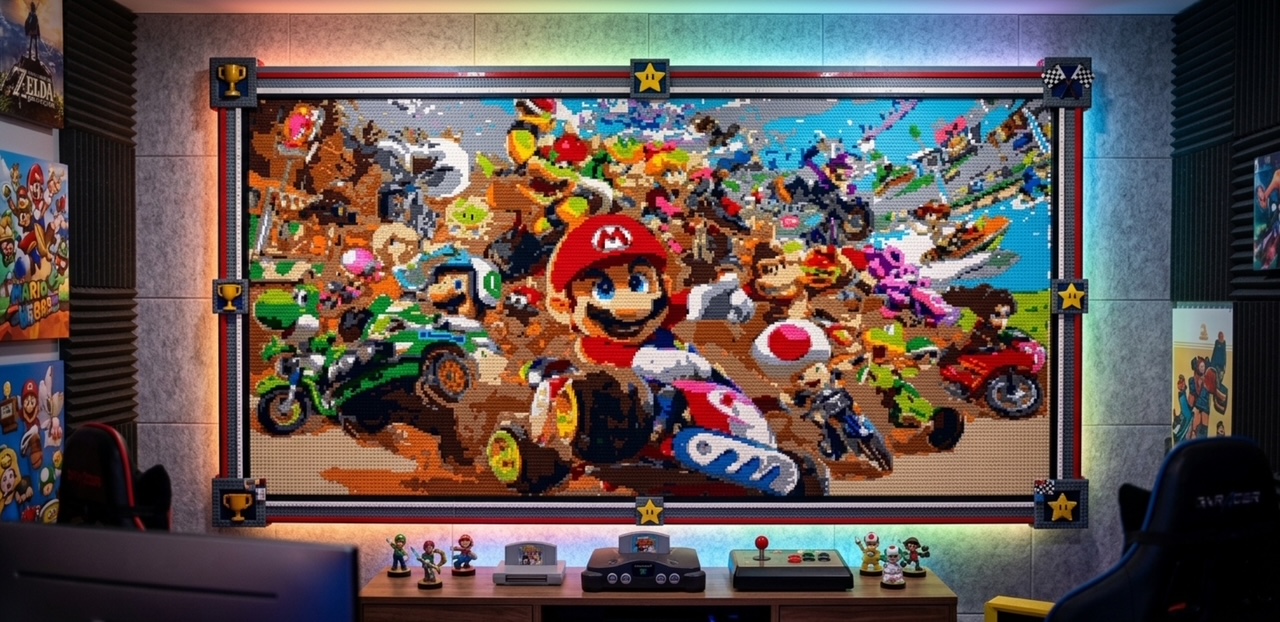

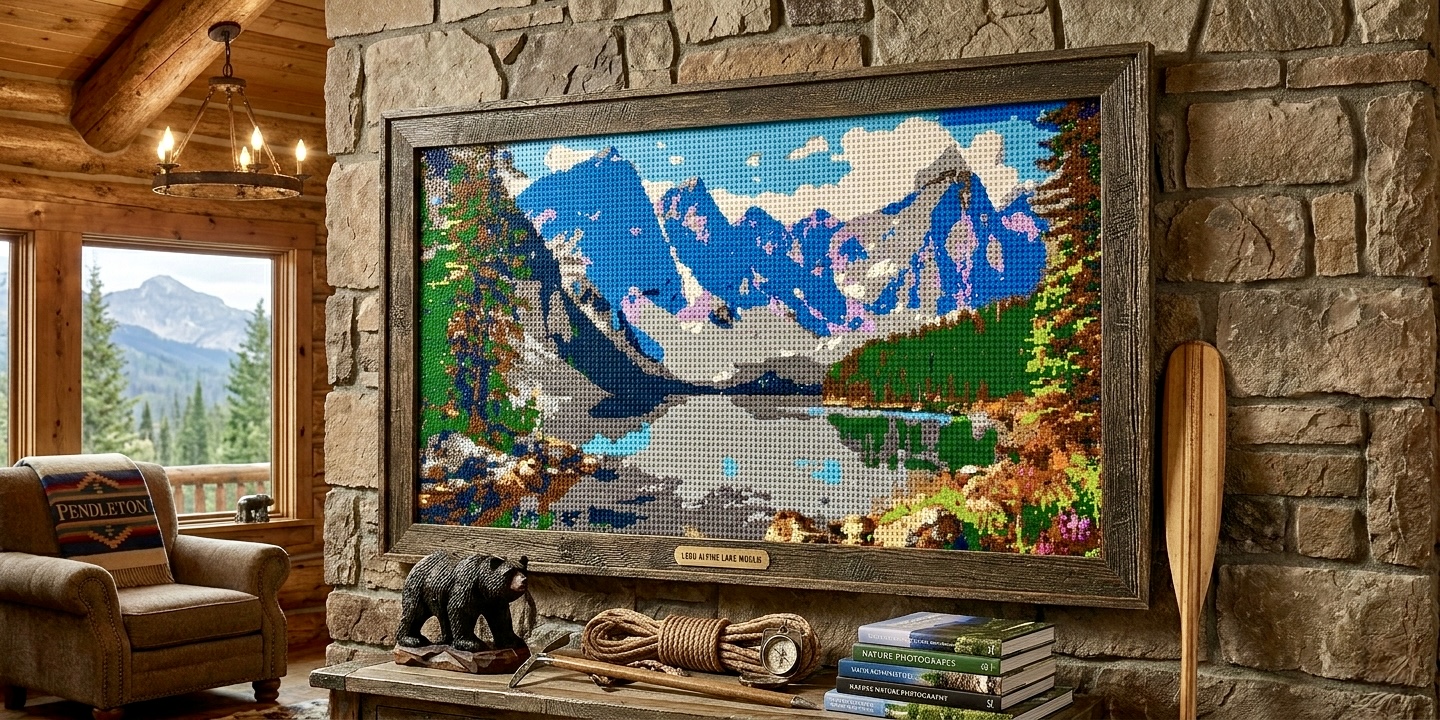
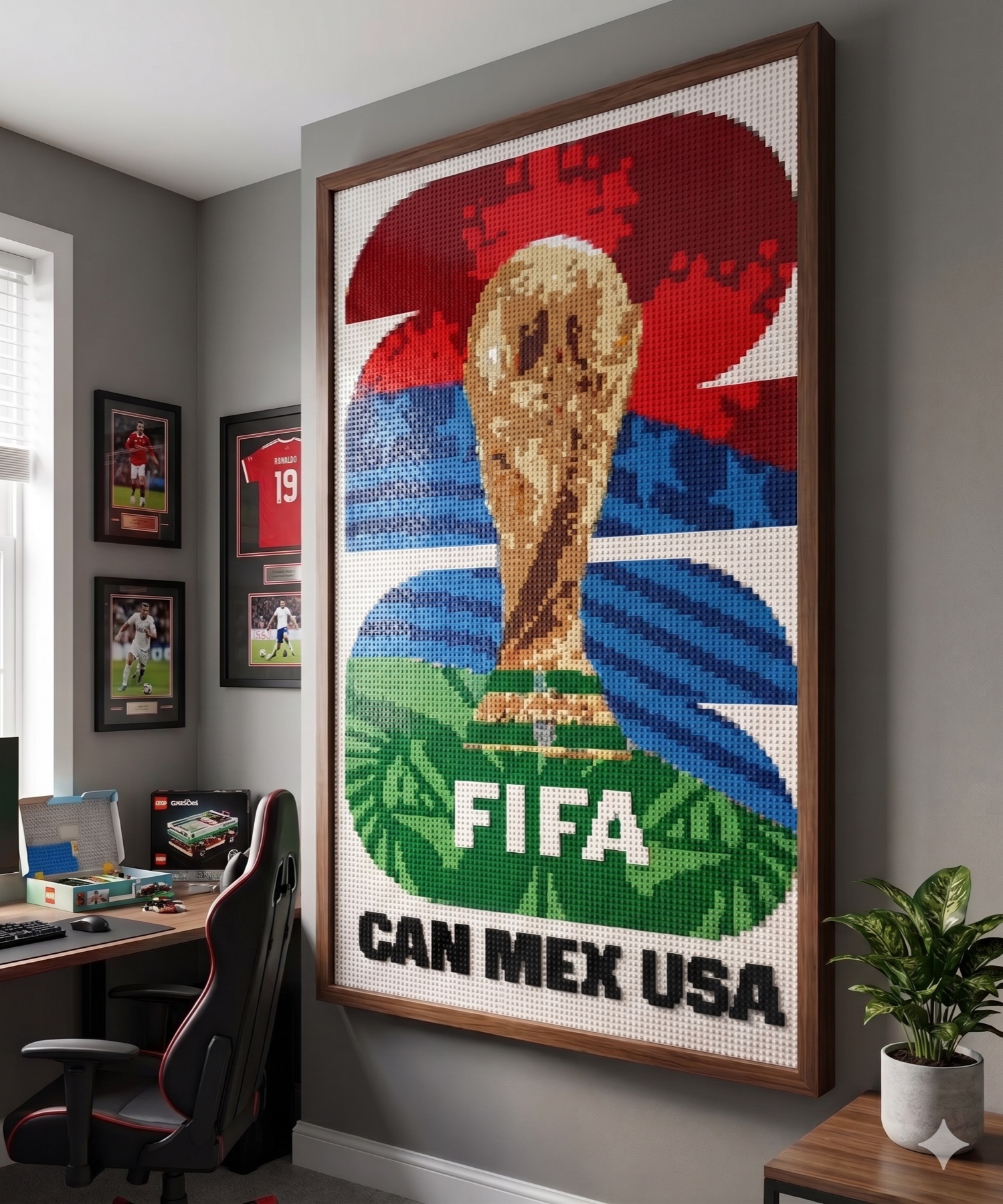
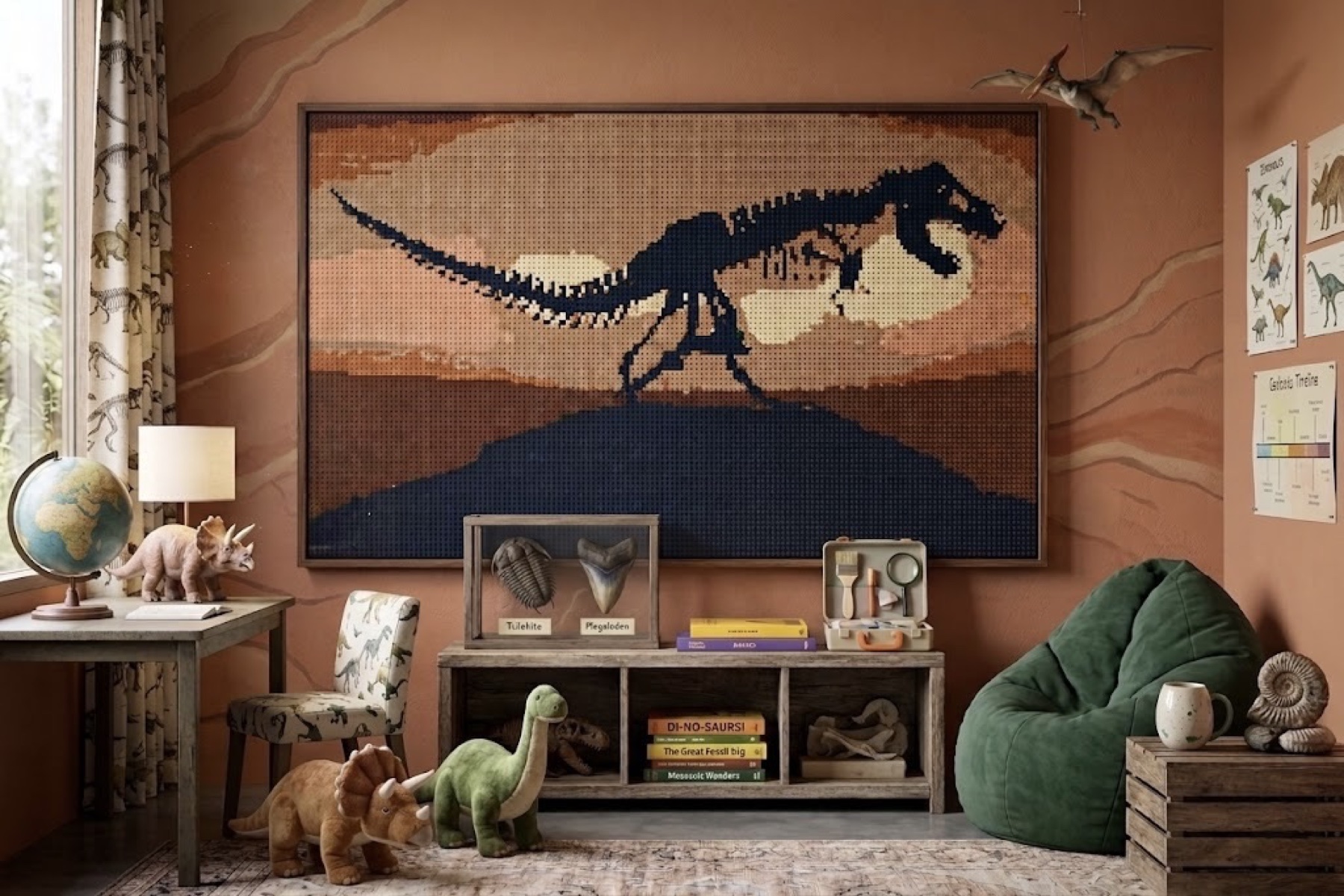
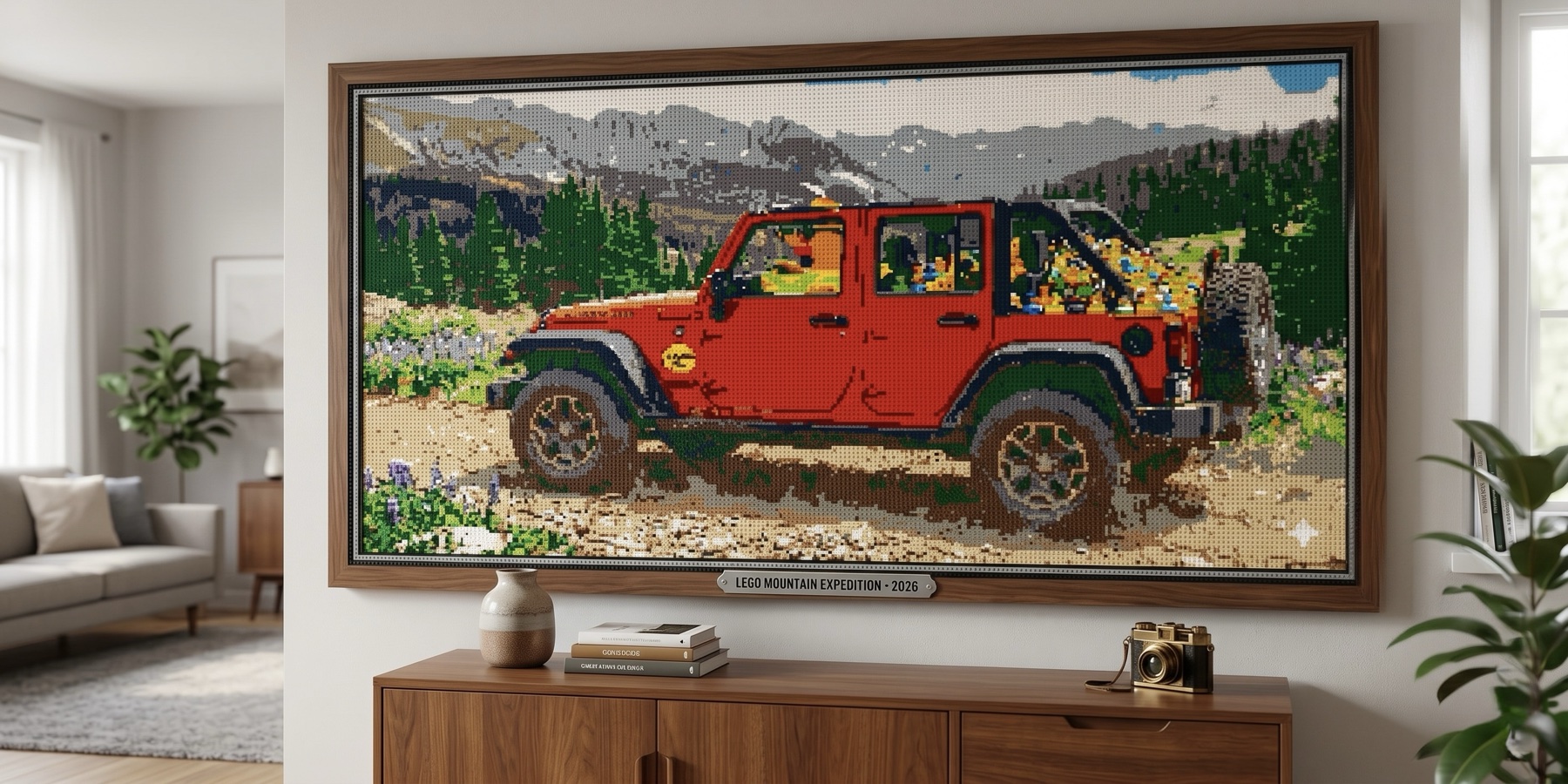

Upload an image to start sizing and cropping.
Privacy note: No images are saved beyond the current session.
Don't want to upload an image? Make a mosaic with our available images here.
Adjust the framing so the selected size includes the right part of the image.
Crop and adjust the image in place before you generate the mosaic.
Upload and adjust your image in Step 1, then click Generate to unlock the previews.
To build this mosaic, download the piece file so you can order from LEGO, and then download the build instructions. PNG download is optional.
Not happy with this mosaic?
We’ll show mosaic size, needed pieces, difficulty, build time, and availability after Step 2 is ready.
After generation, export your Pick a Brick file, build instructions, and image reference from here.
LEGO order file
Upload to LEGO.
Watch the download and LEGO Pick a Brick upload process before you place your order.
Printable instructions
Build instructions.
Reference image
Visual reference.
Happy building!
BrickCanvas downloaded your build instructions. Review them below, or print a copy for your build.
Building your mosaic...
Are you sure you want to start a new project? Your progress on the current project will be lost.
Pick dimensions and a piece type, then download the files for this mosaic.
Choose the LEGO piece style for this gallery mosaic.
BrickCanvas downloaded your piece file. In LEGO Pick a Brick, use the upload/import list tool and choose the file from your Downloads folder.
These required items were left out of the JSON because the app could not map them to Pick a Brick element IDs.
Watch the download and LEGO Pick a Brick upload process before you place your order.
Review the full part mix, color breakdown, pricing estimate, and Pick a Brick details.
Frame the image before generating the LEGO plan.
Paint directly on the mosaic preview. Pick a color and piece size, then drag across the canvas; use Replace Color for whole-mosaic swaps.
Replace one color already used in the mosaic with another LEGO color.
The first dropdown only shows colors currently in the generated mosaic. The second dropdown shows the full LEGO palette.
Are you sure you want to restore the original generated mosaic? Your color replacements and customization changes will be removed.